New Xomega release for .NET 8

We are happy to announce that a new release 9.12.1 of Xomega.Net for Visual Studio 2022 is now available!

With the power of the latest .NET 8 framework, the new release allows you to configure any desired architecture for your new Blazor app using Blazor Server, WebAssembly or a combination of the two with the InteractiveAuto render mode.

You can also host the REST API for your WebAssembly right with the ASP.NET Core Blazor app rather than in a separate project, and have it secured with same-site cookies vs. JWT for the standalone API.

The new solution will automatically include an integrated password-based login screen and all the necessary plumbing for password authentication, which you can easily extend to implement enterprise-grade security for your project.

Overall, the structure of the new projects is so much cleaner in the new release, which should help you to navigate it easily, and learn the best practices for any selected architecture. You can read additional details in our release notes.

The latest release also adds support for creating entity diagrams

We’ve revamped our entire Xomega documentation and refreshed our step-by-step tutorial to show you how to easily create a robust and secure .NET 8 Blazor application from an existing database.

Stay tuned for our upcoming video series that will highlight the key features of Xomega and guide you through the ease of building Blazor apps with our platform. Make sure to subscribe to our channel and hit that notification bell to never miss an update!

In the meantime, feel free to download the new release and see for yourself how it makes building new apps with Blazor (or other technologies) so much quicker and easier.

Please don’t hesitate to contact us with any questions or issues, as we are always happy to hear from you.

Xomega 8.11 for VS 2019 with Bootstrap and Syncfusion support

We are happy to announce the new Xomega.Net release 8.11, where your generated Blazor apps got an awesome facelift with the latest Bootstrap 5 framework, which provides responsive and customizable layout for the views and modern style for the Xomega Blazor components.

In addition to the default Blazor components, Xomega partnered with Syncfusion to allow you to generate Blazor apps using powerful and stylish Syncfusion Blazor components, including support for editable grids.

Among all the improvements, we also made it easier for you to localize the generated Blazor apps, and introduced a framework that allows you to control the state of the view actions from the reusable presentation layer code.

Keep reading to learn more about these new exciting features.

Bootstrap 5 responsive layout and styles

One of the major highlights of this release is the new modern responsive layout for the Xomega Blazor apps, as described below.

Labels on top

First thing that you will notice when generating Blazor apps with the new Xomega.Net release, is that the labels will be placed above the corresponding controls rather than to the left of them, as before. This makes it easier to align the fields, and can also help you keep the same layout for the right-to-left languages, such as Hebrew or Arabic.

In fact, the generated views no longer have separate controls for the labels, as the labels are just a part of the corresponding property-bound controls. The controls get the text for the label and the access key from the bound property, which will take them in turn from the localized resources, as you will see later. The access key gets automatically underscored in the label to give you a visual cue.
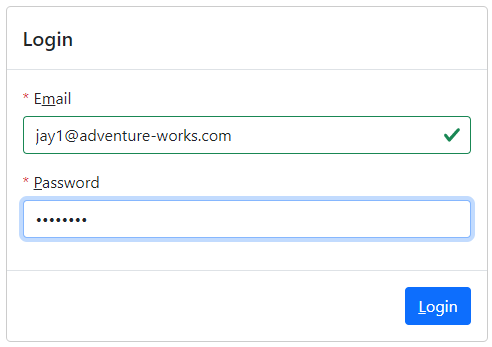
With no separate labels, the generated markup looks much cleaner, and allows you to easily hide both the control and the label when the bound property becomes invisible. The labels for controls bound to a required property will automatically get a red asterisk in front of them to help you communicate the required fields to the users.

From the screenshot above, you can also notice that the controls are now styled using the Bootstrap 5 library, including highlighting valid fields.

Sidebar criteria and menu

Now that the labels are on top of the controls, it made sense to change the layout of the search views to have the search criteria panel as a collapsible sidebar rather than as a panel on top of the results grid.

In the same vein, we made the main navigation menu as a collapsible sidebar, which allows you to show longer text in the menus, and provides more vertical space for the actual screen.

Bootstrap 5 styled controls

We have styled all Blazor controls that were available in the Xomega.Framework.Blazor package using the Bootstrap 5 library, and added some new components to that package that are used in the generated views.

The most notable suearch component is XGrid, which supports multi-column sorting and row selection. This, again, made the markup of the generated views much more readable and concise. Xomega model also allows you to customize the relative widths of the grid's columns either based on the logical types of the column's field or directly in the field configuration in the model.

Listed below are some other controls that have notable upgrades in this release.

Tri-state checkboxes

The XCheckBox component now supports indeterminate state to represent a null value of the bound property.

You can also display checkboxes as switches now, following the modern UI standards.

Field validation messages

Validation messages for the property-bound controls are now automatically displayed below the actual controls instead of being just a plain tooltip.
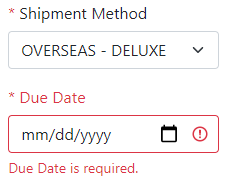
Bootstrap styling is also applied to invalid controls, highlighting them with the red color.

XDatePicker control for entering a date or date and time is based on the native HTML5 controls and calendars now instead of the jQuery UI.

Pick List

XPickList component for selecting multiple values from a list is now styled with Bootstrap and looks like this.

Multi-value auto-complete

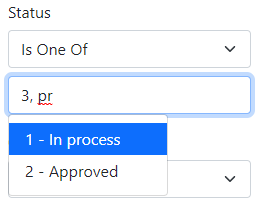
We implemented the XAutoComplete control entirely in Blazor without dependencies on third-party JavaScript libraries, with support of multi-valued properties, meaning that it will properly show suggestions for the value that is currently being edited.
Responsive layout

Bootstrap provides a great framework for building responsive views based on the size of your browser window. Yet, it falls short when it comes to dynamic views, such as master-details, where you can open or close a details panel for the selected record on the side.

As you open a number of such views dynamically, they will be allocated only a certain portion of the browser window, which is not necessarily known at design time. So your statically assigned layout classes would not work correctly, especially if you want to reuse the same view in multiple places, e.g. both in the full screen and embedded as a details side panel.

Xomega enhanced Bootstrap’s approach to responsive layout and provided a framework to dynamically calculate the layout classes for controls and their containing panels, so as to ensure the desired width of the fields as much as possible.

For example, here is a master-details screen, where the details panel is laid out in 4 columns when open on a wide screen.
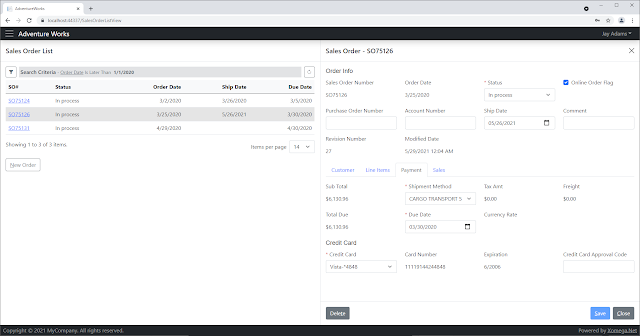
Notice that when you open the details panel on such a screen, Xomega will hide half of the columns in the results grid on the left, instead of jamming all the columns into half the space, or adding a horizontal scroll bar. Presumably, you will be able to see the details on the right panel, so the left-side grid will just need to show the key columns to identify the rows. If you close the details panel now, you will see all the columns in the results grid again.

However, if you try to shrink the width of the browser with the details panel open, you will notice that it will lay out the details into 3 columns first. At a certain threshold though, instead of shrinking the details further, it will completely hide the results grid, which will open up more space, and we'll make the details panel go back to 4 columns.

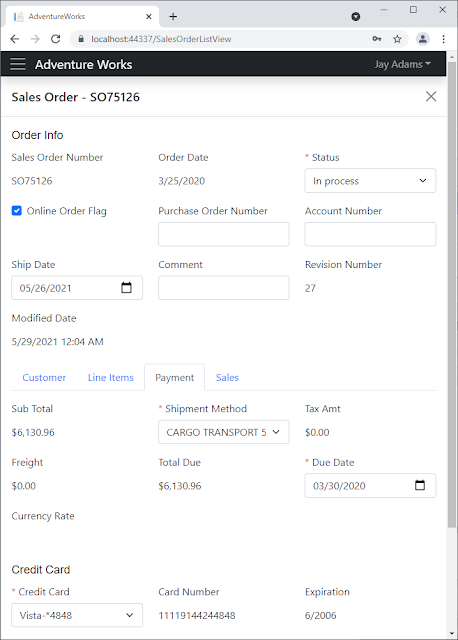
If you continue to shrink the browser, it will be changing the layout to use 3 columns, 2 columns, or 1 column for the smallest devices. Here is what this screen will look like on a smaller device, with the results grid hidden, and the details panel laid out in 3 columns.
Customizable details views

Another great feature in the new Xomega release allows you to precisely customize the layout of individual details panels in the generated views. You can specify the desired maximum number of columns for the fields in each panel, set custom titles for the panels, and indicate which child data objects you want to lay out using tabs rather than plain panels. With tabs, you can also specify a custom title of each tab, and with panels, you can indicate how many columns they should be laid out within their parent object’s panel.

The screen below shows an example of a complex custom layout for a sales order details view. The direct fields of the sales order data object are laid out into up to 6 columns in a top panel with a custom title “Order Info”. The child objects are grouped into tabs right under the main panel.

The child data object Customer has in turn its main panel and the panels of its own child objects laid out in 2 columns, and has a custom title “Customer Info” for its main panel. The fields in its panels are laid out in 2 columns, except for the Billing and Shipping address panels, where they are laid out in 3 columns.

In the new version of Xomega model, you specify the custom layout configuration for each data object under its ui:display element - both for the layout of the main panel and for any of the child data objects.

For example, here is a configuration of the main SalesOrderObject for the above view.

<xfk:data-object class="SalesOrderObject" customize="true">
  <xfk:add-child name="customer" class="SalesOrderCustomerObject"/>
  <xfk:add-child name="detail" class="SalesOrderDetailList"/>
  <xfk:add-child name="payment" class="SalesOrderPaymentObject"/>
  <xfk:add-child name="sales" class="SalesOrderSalesObject"/>
  <ui:display>
	<ui:fields field-cols="6" panel-cols="1" title="Order Info">
	  <ui:field param="sales order id" hidden="true"/>
	</ui:fields>
	<ui:tabs>
	  <ui:tab child="detail" title="Line Items"/>
	</ui:tabs>
  </ui:display>
</xfk:data-object>

With this new flexible per-object configuration for responsive layout, the previous global model element ui:layout is no longer being used for Blazor views, and only remains to be used for older technologies, such as WebForms or WPF.

Action Buttons and Action Properties

Another awesome addition to the Xomega Framework is the ability to define Action Properties and bind them to Action buttons on your view.

Similar to data properties, Action properties maintain the Enabled and Visible state of the action, notify listeners of any changes in those states, and can be added either on specific data objects or directly on the view models, but they don’t carry any data.

This allows you to maintain the state of your actions in the platform-independent presentation layer, such as view models and data objects, and is especially valuable with the Blazor technology, which does not allow you to directly manipulate the state of controls.

Action Buttons bound to reusable Action Properties

Xomega Framework got a new Blazor Bootstrap-styled component XActionButton, which you can bind to your ActionProperty in order to drive its enabling and visible states, as well as to set its localized label.

Here is an example of the typical Delete, Save and Close action buttons for a Details view.

<XActionButton Action="@VM?.MainObj?.DeleteAction" OnClick="OnDeleteAsync"
               Class="me-auto"/>
<XActionButton Action="@VM?.MainObj?.SaveAction" OnClick="OnSaveAsync"
               IsPrimary="true"/>
<XActionButton Action="@VM?.CloseAction" OnClick="OnCloseAsync"/>

As you can see, they are bound to standard actions that are defined in the framework, and the framework implements the default logic for enabling or disabling these actions. For example, the Save action is enabled only when the main object has been modified, while the Delete action is disabled when creating a new object.

Note also that you don't have to provide the text for the action button, as it gets set from the label of the bound property, but you do need to implement the click handlers for the buttons.

Computed state for action buttons

The cool feature of Action properties, which they share with the regular data properties, is that you can set enabling or visibility conditions as Lambda expressions that may use the data object or its properties, and the framework will automatically maintain the action’s state based on this condition.

For example, the above mentioned enabling conditions for the Save and Delete actions would look as follows.

// add save action, and make it enabled only when the object
// is modified or doesn't track modifications
SaveAction = new ActionProperty(this, Messages.Action_Save);
Expression<Func<DataObject, bool>> saveEnabled = (obj) => obj != null &&
                                   (obj.Modified || !obj.TrackModifications);
SaveAction.SetComputedEnabled(saveEnabled, this);

// add delete action, and make it enabled only when the object is not new
DeleteAction = new ActionProperty(this, Messages.Action_Delete);
Expression<Func<DataObject, bool>> deleteEnabled = (obj) => obj != null && !obj.IsNew;
DeleteAction.SetComputedEnabled(deleteEnabled, this);

This feature will make it super easy for you to write the logic for the action states in your reusable presentation layer.

Localization of labels and titles

Xomega Framework already has support for localization of error messages both on the server and the client sides. In the new release we added support for the localization of other UI resources, such as property labels and titles for various panels and views.

Resource localization

Previously all labels and titles were output directly in the generated views using either explicit texts that you provide in the model, or ones derived from the names of the corresponding properties or other model elements.

The latest Xomega version includes a new generator that creates a resource file with all these labels and titles using specific key formats, which allows Xomega Framework to automatically use these resources for data properties’ labels and titles for child objects and views.

The generated Blazor views now use these resource keys to look up and output localized titles, and the updated Blazor controls use the localized label from the bound data property, which allows you to build fully localizable applications with little to no extra effort.

Resource customization

Xomega Framework provides a powerful CompositeResourceManager that lets you combine resources from an ordered list of multiple resource managers, and return resources from the first resource manager that has the specified key. So, for instance, if you include your custom resources before the standard framework resources, you will be able to override the text of the specific framework error messages or labels.

Similarly, you can override resources that are generated from the model for specific objects or properties in your custom resource file. For example, if you want the text for the standard Save button on the authentication form to say “Login” instead, you can override the resources for the corresponding data object as shown below.


Syncfusion Blazor components with editable grids

Another major feature in the new Xomega release is support for Syncfusion Blazor components, such as date/time controls, filterable dropdown lists and combo boxes, multi-select boxes etc, with all their bells and whistles.

This also includes powerful Syncfusion grids with baked-in searching and filtering, column choosing, resizing and reordering, as well as inline editing of grid rows.

When you create a new Xomega solution and select a project for shared Blazor components, you will have a choice between the standard Xomega Framework components and the ones that are based on Syncfusion framework, as shown below.
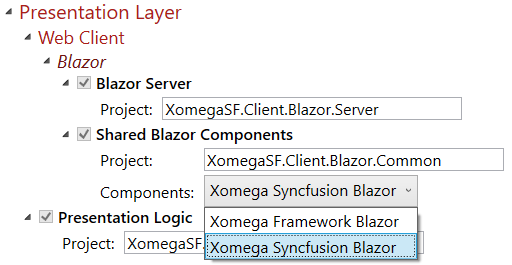
This will set up Syncfusion initialization code and will enable the Syncfusion Blazor Views generator. If you don't have any Syncfusion-specific UI customizations, you will be able to easily switch between the Xomega standard and Syncfusion components to see the difference.

Syncfusion Blazor components

Here is an example of the generated master-details Sales Order list and details forms using Syncfusion components with bootstrap 4 style.

While it may look very similar to the standard Xomega Blazor components, you can notice that it uses the Syncfusion’s MultiSelect control for selecting multiple sales reasons, since the Pick List control is not available in the Syncfusion framework.

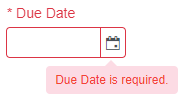
Also the validation message for invalid fields is displayed as a tooltip on invalid controls rather than under the field, in order to be consistent with the grid editing, as shown below.
Syncfusion editable grids

We have enhanced Xomega Framework to support fully-featured inline grid row editing using Syncfusion’s grid. You can still write the platform independent UI logic in your presentation layer data objects, and just bind them to an editable grid.

For example, here is a screenshot of our updated sample, where we enabled editing of the line items of a sales order directly in the grid.

The list of products is automatically displayed as a dropdown, and the items in the Special Offer list depend on the selected product. So does the price, which is not editable and grayed out, just as other calculated fields like the discount (which is based on the special offer) and the total amount.

If you try to update the row with invalid fields, the validation errors will be shown under those fields. All this presentation logic is defined in reusable list data objects and data properties, which you can test independently, and use with various UI technologies.

Conclusion

As you have seen from the above, the new Xomega release introduces a ton of new cool features for generated Blazor apps - from upgrading to Bootstrap styles and layouts, to supporting powerful Syncfusion Blazor components.

This will allow you to generate and build modern and complete apps in no time with little to no coding. We are planning to keep improving Xomega platform and its documentation to minimize the learning curve for you, but feel free to download and check out the new release now, and let us know should you have any questions or issues.

Computed properties in Xomega Framework

In this article you will get familiar with Xomega Framework, and will learn how to write testable and reusable multi-platform presentation logic for your applications. Specifically, you will learn how to implement computed properties using both the traditional MVVM approach and a new, simple but powerful expressions-based approach.

What is Xomega Framework

For those of you who are not familiar with the Xomega Framework, it's a powerful framework for building web and desktop applications in .NET using MVVM pattern with clean layer separation. It allows you to easily write most of your presentation logic in a platform-independent way, which not only makes it extremely testable, but also allows you to use (and reuse) it with completely different UI layers, such as WPF and Blazor, or even with the older WebForms framework.


This way you can share your presentation logic between different UI technologies for web, desktop or even mobile applications, and then easily upgrade the UI layer if a new UI framework becomes available, thus future-proofing your application.


Let's take a look at some of the major parts of the Xomega Framework.

Data Objects

Data objects represent a part of the View Model in the MVVM pattern that contains observable data, which the View can be bound to. Data objects consist of special data properties, as well as other child data objects.


A special type of data object is a list object, where the data is stored in data rows, and the data properties represent columns in a table.

Data Properties

Unlike regular object properties, Xomega Framework data properties encapsulate not only the data value or multiple values, but also dynamic property metadata, such as editability, visibility, security access, whether or not the property is required, a list of possible values, modification state, as well as formatting, validation and conversion rules for the values.


The framework has an extensible hierarchy of data properties, which represents various data types with their specific conversion and formatting rules.


Here is what a data object and some of its properties will look like for the SalesOrderDetail table from the AdventureWorks database.

public class SalesOrderDetailObject : DataObject
{
    public EnumIntProperty ProductIdProperty { get; private set; }
    public SmallIntegerProperty OrderQtyProperty { get; private set; }
    public EnumIntProperty SpecialOfferIdProperty { get; private set; }
    public MoneyProperty UnitPriceProperty { get; private set; }
    public PercentFractionProperty UnitPriceDiscountProperty { get; private set; }
    public MoneyProperty LineTotalProperty { get; private set; }
}

Property Change Events

Similar to the other classic MVVM frameworks, Xomega data properties allow you to subscribe to property change events. However, unlike notifying about only the value changes, like the INotifyPropertyChange interface, data properties can also notify you about changes in their metadata as well, such as when the property becomes editable or required, or when the list of possible values for the property has changed.


A single property change event can be fired for any change in the data property’s value or any of its metadata, and also for any combination of such changes. So a single event can notify you about changes in all property attributes at once, which would allow listeners, such as property-bound controls, to update all of its state at the same time.


It also means that when listening for just property value changes, for example, you need to check if the property change includes the value change to avoid unnecessary execution of your callback.

Binding to UI controls

One of the primary usage of the property change events is support for binding properties to UI controls. This would automatically include binding control’s state to the property metadata, which makes this binding extremely simple and easy to use.


Once a UI control is bound to the property, you can set the property to be editable, required or invisible, and the changes will be reflected in the UI control automatically,  without you having to bind those things separately.


Depending on the UI framework that you use, there could be two different ways to bind UI controls to data properties, as described below.

Control property bindings

With UI frameworks that allow you to associate additional attributes with the controls, such as attached properties in WPF, or custom attributes in WebForms controls, you can set the data property name on such controls, and have those controls bound to the data property using separate bindings.


This method allows you to bind any custom or third-party control that is derived from common UI controls to your data properties. Xomega Framework provides an extensible hierarchy of property bindings for both WPF and WebForms controls.


Here is an example of a WPF ComboBox control that is bound to the ProductId property using a static constant for the property name to provide compiler safety.

<ComboBox xmlns:xom="clr-namespace:Xomega.Framework;assembly=Xomega.Framework.Wpf"
          xom:Property.Label="{Binding ElementName=lblProductId}"
          xom:Property.Name="{x:Static o:SalesOrderDetailObject.ProductId}" />

The same control in WebForms would look as follows.

<asp:DropDownList LabelID="lblProductId" Property="<%# SalesOrderDetailObject.ProductId %>"
                  AutoPostBack="true" runat="server" />

Property bound controls

In other UI frameworks where using separate property bindings is not supported or problematic, you can develop and use custom UI controls that can be bound to Xomega data properties.


Xomega Framework provides a set of common Blazor components that you can bind directly to your data properties.


For example, a view with Blazor components that is bound directly to the properties of our SalesOrderDetailObject would look as follows.

<div>
    <XLabel Property="@VM?.MainObj?.ProductIdProperty" Text="Product:" />
    <XSelect Property="@VM?.MainObj?.ProductIdProperty" />
</div>
<div>
    <XLabel Property="@VM?.MainObj?.OrderQtyProperty" Text="Order Qty:" />
    <XInputText Property="@VM?.MainObj?.OrderQtyProperty" />
</div>
<div>
    <XLabel Property="@VM?.MainObj?.SpecialOfferIdProperty" Text="Special Offer:" />
    <XSelect Property="@VM?.MainObj?.SpecialOfferIdProperty" />
</div>
<div>
    <XLabel Property="@VM?.MainObj?.UnitPriceProperty" Text="Unit Price:" />
    <XDataLabel Property="@VM?.MainObj?.UnitPriceProperty" />
</div>
<div>
    <XLabel Property="@VM?.MainObj?.UnitPriceDiscountProperty" Text="Unit Price Discount:" />
    <XDataLabel Property="@VM?.MainObj?.UnitPriceDiscountProperty" />
</div>
<div>
    <XLabel Property="@VM?.MainObj?.LineTotalProperty" Text="Line Total:" />
    <XDataLabel Property="@VM?.MainObj?.LineTotalProperty" />
</div>
  
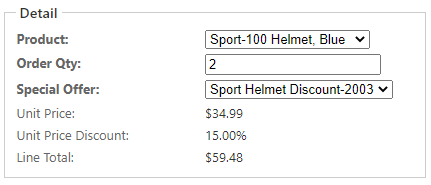
When you run the application and open that view, it will look as shown below.


We used appropriate edit controls, such as dropdown lists and a textbox, for the first three fields that the user can enter. The last three fields are calculated based on the selected values of the first three fields, and cannot be entered directly by the user. So we used a display-only XDataLabel component for them, which is also bound to our properties.


Note also that the properties are automatically displayed using proper formatting, such as currency or percent.

Computed Properties

As you saw earlier, calculated display-only fields on a view are bound to data properties, where the value is not entered by the user, but is rather computed from the values of other data properties.


Specifically, the Unit Price is calculated based on the selected Product, and the Discount is calculated based on the selected Special Offer. Those selected values are represented by a Xomega Framework class Header, which stores an internal Id, the display text, and an arbitrary number of named attributes. The values of the unit price and discount are stored as special attributes of those selections, as you will see below.


The Line Total property is computed based on the specified quantity and the calculated unit price and discount. Let’s take a look at how to implement such computed properties using Xomega Framework.

Computed properties via events

The most straightforward way to implement a computed property is to add property change listeners to any other data properties that it depends upon, and then recalculate the computed value whenever the value of any of those data properties changes.


To implement the Unit Price we can override the OnInitialized method on our data object, and add a listener to the ProductIdProperty, which will update the UnitPriceProperty as follows.

protected override void OnInitialized()
{
    base.OnInitialized();
 
    ProductIdProperty.Change += (sender, e) =>
    {
        if (e.Change.IncludesValue())
        {
            UnitPriceProperty.SetValue(ProductIdProperty.IsNull() ? null : 
                                       ProductIdProperty.Value["list price"]);
        }
    };
}

Note how we check if the change includes value, since data property changes may be fired for other metadata changes.


To implement the computed property for the Unit Price Discount, we will add a similar listener to the SpecialOfferIdProperty, and will set the value of the discount from an attribute of the selected special offer as follows.

SpecialOfferIdProperty.Change += (sender, e) =>
{
	if (e.Change.IncludesValue())
	{
		UnitPriceDiscountProperty.SetValue(SpecialOfferIdProperty.IsNull() ? null : 
                                          SpecialOfferIdProperty.Value["discount"]);

		UnitPriceDiscountProperty.Visible = !UnitPriceDiscountProperty.IsNull() &&
                                                     UnitPriceDiscountProperty.Value > 0;
	}
};

In the same listener we update the visibility of the discount property in order to hide the field if there is no discount.


Finally, to implement the computed Line Total property, we will first add two helper functions: GetLineTotal that calculates the line total for supplied nullable values, and the UpdateLineTotal property change listener, which uses that function to set the value of the LineTotalPoperty from the values of the other properties, as follows.

private decimal GetLineTotal(decimal? price, decimal? discount, int? qty) =>
    (price ?? 0) * (1 - (discount ?? 0)) * (qty ?? 0);
 
private void UpdateLineTotal(object sender, PropertyChangeEventArgs e)
{
    if (e.Change.IncludesValue())
    {
        LineTotalProperty.SetValue(GetLineTotal(UnitPriceProperty.Value,
            UnitPriceDiscountProperty.Value, OrderQtyProperty.Value));
    }
}

Now we just need to update the OnInitialzied method, and add the UpdateLineTotal as a listener to all the properties, whose values it depends on, as shown below.

    ProductIdProperty.Change += UpdateLineTotal;
    SpecialOfferIdProperty.Change += UpdateLineTotal;
    OrderQtyProperty.Change += UpdateLineTotal;

Remember that all this presentation logic is contained entirely in the data object, and does not depend on the actual UI layer, which means that you can reuse it with any UI framework.

Computed properties via expressions

While implementing computed properties via events, as described earlier, could be the most straightforward way, it’s not the simplest or the most natural one. Adding all these property listeners that recalculate values of other properties can get very tedious. And even after you add them all, you will have a hard time understanding how each computed property is calculated. You also need to be very careful when changing any of the calculations to make sure you add new listeners for any additional properties that computed value uses, and remove the listeners for the properties that it no longer depends on.


A more natural way to define computed properties is to just express the formula for calculating the value, and let the system update the computed value whenever the other properties change. This would be similar to defining such formulas for calculated cells in an Excel spreadsheet.


In order to support this, Xomega Framework added a new feature, where you can define an expression that takes any number of data objects or data properties and returns the computed value as an object. Then you call the SetComputedValue method on the target computed property, and pass that expression to it along with references to the actual objects for the expression’s arguments.


With this approach, setting up the computed UnitPriceProperty with an expression that takes the current data object will be very easy and succinct, as shown below.

protected override void OnInitialized()
{
    base.OnInitialized();
 
    // computed property using the entire object
    Expression<Func<SalesOrderDetailObject, object>> xPrice = sod =>
        sod.ProductIdProperty.IsNull(null) ? null : sod.ProductIdProperty.Value["list price"];
    UnitPriceProperty.SetComputedValue(xPrice, this);
}

You can make it even more succinct and easier to read, if you make the expression based on specific data properties rather than a data object, as shown in the following snippet, which sets up the price discount based on the special offer.

    // computed property using individual property
    Expression<Func<EnumProperty, object>> xDiscount = spOf =>
        spOf.IsNull(null) ? null : spOf.Value["discount"];
    UnitPriceDiscountProperty.SetComputedValue(xDiscount, SpecialOfferIdProperty);

If you want to set up computed metadata, such as visibility or editability, based on the values or metadata of other properties, then you can use a similar expression that returns a bool. For example, the following code shows how to make the price discount visible only if its own value (the discount) is greater than zero.

    // computed visible attribute based on discount value
    Expression<Func<PercentFractionProperty, bool>> xVisible = dp =>
        !dp.IsNull(null) && dp.Value > 0;
    UnitPriceDiscountProperty.SetComputedVisible(xVisible, UnitPriceDiscountProperty);

Finally, to configure more complex computed properties, such as our LineTotalProperty, we can make the expression use our helper function GetLineTotal, and just pass it the values of individual data properties, as follows.

    // computed total using a helper function
    Expression<Func<SalesOrderDetailObject, decimal>> xLineTotal = sod =>
        GetLineTotal(sod.UnitPriceProperty.Value,
                     sod.UnitPriceDiscountProperty.Value,
                     sod.OrderQtyProperty.Value);
    LineTotalProperty.SetComputedValue(xLineTotal, this);

Using helper functions like this will allow you to keep the expressions easy to read and implement, since you will no longer be limited by the expression syntax in the helper functions, and can use the full gamut of C# features there.

Conclusion

In this article you have learned the basic principles of Xomega Framework that uses observable data properties and data objects to implement reusable presentation logic of your application independent of the UI framework being used.


You saw how the property change events can be used both for binding data properties to UI controls, and to implement computed properties.


And lastly, you learned how the new Xomega Framework features allow you to easily set up computed properties using clear and concise expressions for the calculated value, without the hassle of managing any property listeners.


Please feel free to try out these new cool features of the Xomega Framework, and let us know how you like them.


New Xomega.Net 8.10.3 for VS2019 with advanced solution configuration

We are happy to announce a new release 8.10.3 of Xomega.Net for VS2019, which makes creating and configuring Xomega solutions and picking the right technologies for your application a total breeze.

Instead of dozens of preconfigured New Project VS templates for various combinations of technologies to select from, the new Xomega release provides a single, easy to find New Project template for creating or updating Xomega solutions, which allows you to select the technologies you want to use in your application, and then configure each included project as needed.

When selecting any technology or configuration, the Xomega solution configuration wizard will automatically select any other projects that are needed to support that technology. For example, if you select a Blazor WebAssembly client for your application, the wizard will also include projects for shared Blazor components, UI objects and view models shared with all clients, as well as projects for shared service contracts and service implementations. In addition, it will include a project for REST services, since that's the only supported communication protocol for Blazor WebAssembly clients.


On the other hand, if you select a WPF client, then you can configure your architecture on how it will communicate with the backend services - via REST or WCF as the middle tier, or directly call them and access the database from the client in the two-tier client-server architecture. Based on your selection the wizard will include a project for exposing services via REST or via WCF, or none of those for the two-tier case.

For other projects you can choose their relevant configurations, such as which ORM to use - EF Core or the classic Entity Framework 6.x, whether or not to host the WebAssembly in ASP.NET Core, and so on. You can also customize the project names to use for each project, if you don't like the default names.

Once you configure and create a Xomega solution, you'll be able to use the same New Project template to add and configure additional projects to it later on. Take a look at what the new process of creating Xomega solutions looks like in our updated walkthrough tutorial.

As a side note, we have also updated our installer to no longer offer installation of individual features, since all technologies use the same template now.

So go ahead and download the new release, and give it a test drive. We would love to hear your feedback on it, so please don't hesitate to contact us with any questions or issues.

Xomega 8.10 for VS 2019 with Blazor and .NET Core 3.1 support.

We are excited to announce our new major Xomega release 8.10 for Visual Studio 2019.

The main focus of this release is upgrading to the latest .NET Core 3.1 technologies for building web and desktop applications. This includes adding support for the new Blazor Server web apps, upgrading WPF and EF6 to their latest .NET Core versions, using ASP.NET Core REST services for multi-tier apps, and switching to use asynchronous operations both on the client and server sides.

The legacy .NET Framework technologies, such as WebForms and WCF, have been also upgraded to support async operations. We recommend to use them only if you want to add Xomega to your existing systems that use these technologies, or if you are more familiar with them, and would like to try out Xomega before moving up to the latest .NET Core technologies. Since most of the code is shared, you can easily switch from one technology to another.

Below please find a summary of the updates in the new release.


Blazor Server support
  • New template to create Xomega Blazor solutions and projects.
  • New package Xomega.Framework.Blazor that provides base views and components for Blazor server projects based on Xomega Framework.
  • Generation of Blazor views from the Xomega model.
  • Authentication and authorization support.

Common enhancements
  • Support for async operations with cancellation tokens on both the client and server sides.
  • Upgrade to Entity Framework 6.4 to allow using it in .NET Core apps in addition to the Entity Framework Core.
  • Generation of REST service clients in C# that allows multi-tier client apps to use ASP.NET Core REST services.
  • Minimized custom code required to implement contextual lookup tables.
  • Support for dynamic view titles with modification indicators in view models.
  • Localization support for common messages.
  • Using Xomega Framework 3.0.0 with support of the above features and other improvements and bug fixes.
  • Using the latest versions of the NuGet packages.

WPF enhancements
  • Upgrade to use the latest cross-platform WPF on .NET Core 3.1
  • Upgrade to support async operations to minimize UI freezing.
  • Using REST services for multi-tier WPF apps now, with an option to still use legacy WCF services.
  • Allowing to create a custom window for generated views.
  • Project file for WPF projects upgraded to .NET Core format, allowing to not have to add generated files to them, and to customize file nesting rules.

SPA enhancements
  • Consuming REST services that use System.Text.Json for serialization.
  • Upgrades to the TypeScript XomegaJS 3.0.0 framework to support new features in the Xomega Framework 3.0.0.

WebForms enhancements
  • Upgrade to support async pages and operations to improve scalability.

Since Visual Studio 2017 does not support .NET Core 3.1, all this functionality will be available only from VS 2019 and up, so we recommend that you upgrade to the latest version of Visual Studio.

As you may know, VS 2019 changed the way New Project dialog works, and shows a single searchable list of project and solution templates rather than an organized tree view. With the number of technologies Xomega supports and their combinations, there are currently 33 different Xomega project templates, which may be confusing to navigate. In a future release, we are planning to add a wizard that would help you pick the desired combination of technologies and features to build your solution.

We are also going to update the documentation, but most of the steps are either similar or the same as before. You can follow us on twitter to stay tuned with these updates. Also check out our updated sample solution on github that demonstrates all the technologies and various Xomega features.

So go ahead and install the new release to start with these new technologies now. Feel free to contact us if you have any questions or issues with Xomega.

Support for .Net Core added to Xomega for VS 2017

We are excited to announce a new Xomega release 7.9 for Visual Studio 2017.

The main target of this release is the support of .Net Core, which allows you to use the latest, yet already quite mature Microsoft technologies, in order to quickly build high-performance cloud-enabled web applications in addition to the regular desktop apps.

Here is a summary of the new features in this release.


Support for Entity Framework Core.

You can now generate the entities and DB context classes either for the original EF 6.x or for the new EF Core, based on a flag set in the global entities configuration in the model. You can also generate extended partial classes for selected entities to add your custom code to.

ASP.NET Core REST Services.

The project for REST services has been updated to use ASP.NET Core 2.2 and EF Core instead of the older OWIN-based Web API package. This allows you to easily host your REST services on any machine as well as on the cloud.

To improve performance of the REST services, they now use asynchronous services by default, which helps them handle higher volumes of requests. You can still use traditional synchronous services though by setting the corresponding async parameter on the global services configuration in the model.

Updated Project Templates.

Project templates for creating new Xomega solutions or individual projects have been updated to use EF Core, but the legacy templates for EF 6.x are also available as an alternative.

All shared projects use the slim .Net Core format now, which makes them automatically pick up new changes after code generation without having to reload them.

Right after you add a new solution, you will be able to build it now without having to build the model project first.

And finally, all third party NuGet packages for the solution will be installed from the standard sources configured in your Visual Studio, such as nuget.org, instead of the local file system. This helped to cut the size of the installation download almost in half by not including any external packages.

For Visual Studio 2015 users

Unfortunately, Visual Studio 2015 does not support the latest .Net Core projects, nor is it likely to support them in the future, given the upcoming release of the VS 2019. Therefore, these new features will be only available for VS 2017 and up.

We did release a patch 6.8.1 for VS 2015 though, which contains some fixes for the previous release. Note that after we release a Xomega version for VS 2019, support for the VS 2015 version will be discontinued, so we recommend that you upgrade to the latest version of Visual Studio.

We hope that you’ll enjoy the new features once you go ahead and install the new release, but please feel free to contact us if you have any questions or issues.

Introducing support for Flexible Operators

In release 7.8 Xomega has tremendously improved support for operators that are used to build search forms and LINQ queries.

Thanks to the framework support, using operators to build LINQ queries takes just a single line of code now. The framework comes loaded with standard operators for common data types, as well as dynamic operators for ranges of (relative) dates and numbers. Plus, it allows you to implement and plug in your own operators or override the behavior of any of the built-in operators.

Read on to learn more about these powerful features.


Framework to support operators for building queries.

While Xomega supported operators for query operations before, it was using a predefined list of operators, and each operator was handled explicitly for each criteria in the generated service, which resulted in a rather bloated and inflexible generated class.

With addition of the operators support to the Xomega Framework, including in the BaseService class, handling any criteria with operators takes just one line in the service now. Not only does it make the generated code much more cleaner, but it also helps writing custom code for non-standard criteria so much easier.

Standard operators for common data types.

Xomega Framework provides implementation for most of the standard operators on the common data types, such as Is Null, Equals To, Less Than and Greater Than, Between etc., including the corresponding inverse operators.

You can also develop and register your own implementation of any custom operator, or even override implementation of any of the standards operators.

Dynamic operators for date ranges using relative dates.

In addition to the standard predefined operators, Xomega Framework supports dynamic operators for date ranges. For each upper/lower bound of the range you can use either an absolute date or a relative date, such as ‘ct’ for the current time, ‘bo(s/m/h/d/w/M/y)’ for the beginning of second, minute, hour, day, week, month or year respectively, or the ‘eo(s/m/h/d/w/M/y)’ for the end of the same period.

You can further adjust it by adding or subtracting a certain number of periods, e.g. -60d to subtract 60 days, and also indicate whether you want to include or exclude the bound by using either square brackets or parentheses respectively.

For example, Xomega supplies the following standard dynamic range operators for relative  dates, but you are free to define your own operators like that in your Xomega model.
      <item name="Today" value="[bod,eod)"/>
      <item name="This Week" value="[bow,eow)"/>
      <item name="This Month" value="[boM,eoM)"/>
      <item name="This Year" value="[boy,eoy)"/>
      <item name="Last 30 Days" value="[bod-30d,ct]"/>

Dynamic operators for number ranges.

Similar to the date ranges, Xomega Framework also supports dynamic operators for numeric ranges. So, for certain numeric fields you may want to let the user select criteria for some  predefined ranges instead of, or in addition to, manually supplying the From and To values.

For example, to filter something by price you can define low, medium, and high price ranges,  which you can call  Budget, Average and Luxury respectively, as follows.
      <item name="Budget" value="[0,100)"/>
      <item name="Average" value="[100,1000)"/>
      <item name="Luxury" value="[1000,)"/>

These operators do not require additional values, and are more convenient for the user. If none of your operators for a certain field require additional values, then you can also make the operator parameter multi-value in the Xomega model, which will allow the user to filter by multiple ranges at the same time.

New Service Validations in Xomega 7.8

Xomega now supports more easy and powerful validation on the server side, which ties into the Xomega error reporting framework.

This includes service request validations using Data Annotations, as well as user-friendly errors for common constraint violations as follows.


Improved validation of entity existence.

The services project template includes a convenient extension method to find entities by the key(s) and report an immediate 404 error if the entity is not found. This method is used by the generated services, and can be used by the custom code, which makes the code much cleaner.

Improved validation of foreign keys.

Similar to the entity existence validation, there is now a simple method to validate if the supplied foreign key(s) are valid. Unlike the previous validation though, it reports a regular error, which allows to gather all applicable errors before running the business logic and report them in a user-friendly fashion, as opposed to the DB constraint violation errors.

Validation of duplicate primary keys.

Another added validation that is also used by the generated services allows you to validate if the entity with the given key(s) already exists when creating a new domain object, which also reports a user-friendly error instead of a DB primary key violation.

Request validation of required fields, maximum length and enumerations.

The UI forms generated by Xomega already take care of validating user input in terms of required fields, maximum length etc. and make sure the values for enumerated fields are selected from the associated list.

However, the best practices for multi-tier architectures call for the business services that are exposed via REST or WCF to also perform such validations, without relying solely on the client for those. While some of these checks would be done by the database as well, Xomega now validates request values upfront, and reports user-friendly errors before running the business logic.

Improved Error Reporting in Xomega 7.8

Xomega has made some significant changes in the way errors and other messages are reported from the business services and displayed to the user.

This includes ability to return not only errors, but also warnings and info messages from any service operation in a standardized way, and handle them consistently by displaying them in a configurable closable panel as described below.


Ability to return (warning/info) messages from services along with the results.

Validation errors, as well as other types of errors from business services are returned to the client using standard Xomega Framework structures for error messages, which allows handling them consistently on the client side. However, if a service operation succeeds and has no errors, but still needs to report some warning or info messages to the client, potentially also with the actual results of the operation, there was no standardized way to report those, and you’d have to custom design each such operation to return the necessary messages.

With the new release, each Xomega service operation now returns a standardized list of errors, warnings and/or info messages in addition to the actual results of the operation, where applicable. This way any service operation can easily report additional warning or info messages, which would be displayed to the user, without having to customize its output structure.

For example, an update service operation may report some warnings to the user based on business validations. Or a service may report cross-cutting messages informing the users about a scheduled downtime or about a newer version of the service available.

Reported messages and errors displayed consistently in a closable panel.

Previously the validation and service errors were displayed inconsistently across the UI clients as a simple list either on the screen or in a popup dialog for WPF clients. The errors could be closed also inconsistently - by closing the dialog in WPF, after any postback in WebForms, and after re-running the validations and the service operation in the SPA client.

In the current release, all Xomega messages from client-side validation or service operations are consistently displayed in a closable panel on the same view that triggered the operation as shown below.


This way the users can have the messages up while they are addressing the errors on the screen, or they can just close it if they don’t need it anymore.

Configuration of the messages panel layout.

In addition to the messages being in a closable panel now, you can now configure whether you want to display it at the top or the bottom of the form for both the search and details screen. This is done as part of the view layout configuration in the model, which you can configure in one place, or override for each individual view as needed.

Globalization Support in Xomega 7.8

Xomega release 7.8 has added support for globalization of the business services to allow translating messages to the language of the request and overriding framework’s default messages, and uses the current request culture for date operations as follows.

Error messages read from resources for globalization.

The text for error messages from the Xomega Framework as well as server-side validations is now read from the resource files, allowing to provide such texts in multiple languages, and return localized error messages in the language of the service request.


Ability to override and translate text for message from referenced libraries.

The default implementation of the ResourceManager in the .Net framework allows reading the text only from a specific resource or its satellite localizations. As a result, when such resources come from a third party library, such as the Xomega Framework itself, the application has no way of customizing the text of the messages used by that library.

With addition of the CompositeResourceManager in the Xomega Framework, you will be able to not only translate the framework’s messages into another language, but also override the default (English) text for some of those messages.

Use of request culture for date operations.

In addition to translation of the error messages, the services can use the current request's culture for date operations. For example, when filtering dates for the current week, Xomega Framework will use the current culture to determine the first day of the week, i.e. Sunday or Monday.

Entities generation revamped in Xomega 7.8

Starting from release 7.8, Xomega has completely upgraded the way Entity Framework classes are generated.

Entity Framework classes are generated now directly from the Xomega model.

Previously, the Entity Framework (EF) classes were generated using standard Model-First EF T4 templates from an Entity Data Model (EDM), which was in turn generated from the Xomega model. Now they are generated directly from the Xomega model using a new Xomega generator called EF Domain Objects. Generating EDM is no longer needed for the application, but that generator is still available in case you want to view your entity model on graphical diagrams.

This provides a lot of benefits as a result, such as the following.


  • Full control over the way Entity Framework classes are generated.
  • Ability to output generated classes using Xomega standards - grouped in sub-folders by module, individual files in a single folder, or even all generated classes in a single file.
  • Generated classes and their fields now have documentation comments from their Xomega model’s doc elements to help developers use them correctly.
  • No need to run T4 templates after the Xomega generation, which was failing sporadically, resulting in compile and run-time errors after domain model updates.
  • No need to maintain edm:type configurations on logical types, unless you need to generate an EDM for diagrams, since Xomega uses now the clr:type configurations instead.
  • Ability to use Entity Framework Core in the future, which does not support EDM.

Entity configurations are generated by each entity using Fluent API.

Without the generated EDM, the EF classes use Fluent API now to configure the domain entities. Unlike the standard EF generators that create entities from database tables and output all configurations into a single method OnModelCreating of the generated DbContext class, configurations for entities generated from the Xomega domain objects are segregated neatly into separate files for each entity, which makes them much more easier to work with, and keeps the code for the entities and the context very clean.

Fluent API allows you to easily customize or override configurations of each entity without touching the generated code. For example, you can tweak configurations of any property,   entity or relationship in a subclass of the generated DB context, and then register that subclass with the Dependency Injection container.

New Full Xomega Demo

New Video Tutorial / Xomega Demo
We are excited to announce the release of our new, comprehensive Video Tutorial on Model Driven Development with Xomega.

In this full and captivating demo, you will learn the benefits of MDD, and will see how you can quickly model, generate and customize a complete, secure, state-of-the-art web application, with powerful search screens and complex details views. Don't believe me, just watch!

As we work on additional videos to cover other Xomega topics and features, it would be extremely helpful if you could provide your feedback on what you like about the video, and what you would like to be covered better.

Please don't hesitate to contact us via email, post to our forum, or leave comments on our blog.

Xomega.Net is now available for Visual Studio 2017

We are excited to announce that Xomega.Net is now available for Visual Studio 2017 with its latest release 7.7.2.

This release includes all the same features for modeling and generating ASP.NET, WPF and SPA applications as the current release 6.7.1 for Visual Studio 2015, plus some additional fixes to support the AdventureWorks demo database for SQL Server 2016.

To help you ramp up quicker, we published a comprehensive step-by-step tutorial for building different types of .Net applications using Xomega.

We have also updated documentation of all Xomega generators on our website, in order to make it more detailed and structured, and to provide examples for various use cases.

Download and install the new release, and feel free to contact us if you have any questions or issues.

New groundbreaking Xomega.Net release

We're happy to announce a new groundbreaking release of our modeling and rapid application development platform Xomega.Net. It has been a while since our last release, but rest assured we have been working hard to improve and enhance Xomega, and bring it up to speed with the current.Net development technologies.

The major goal of the new release was to allow you to build full stack end-to-end web and desktop applications using modern .Net architectures and a flexible model driven approach that would allow you to customize and override most of the code generated from the model, and regenerate it later without losing your changes.

Here are some highlights of the changes in this release that help achieve this goal.

  • Xomega model enhancements to allow defining UI views and view models in it.
  • Support for defining links between views in the model, including the link's input and output parameters, as well as the placement of the link.
  • Allowing some field-level UI customizations in the model, such as visibility, editability, field label, etc.
  • Ability to define multiple view layout configurations with different layout parameters in the model, such as master-details or a popup window for viewing details, arrangement of child objects in a tabbed or stacked manner, etc.
  • Simplified definition of data objects in the model to make browsing and working with them much easier.
  • Support for new UI controls, such as a date picker and an autocomplete text field.
  • Support for object selection from a child search form, where the list is too long for standard selection controls.
  • Support and usage of Dependency Injection throughout all applications layers, allowing you to subclass and customize generated views, data objects, services, etc., and then inject them into the application code.
  • Support for inline custom code that is embedded into the generated code, and is preserved when the code is regenerated.
  • Refactored service calls from the presentation layer to encapsulate them in the corresponding data objects, allowing for better code reuse within your application.
  • Support for claims-based security in both service and presentation layers.
  • New versions of the open source Xomega Framework and its Type Script counterpart XomegaJS to support all of these enhancements for different .Net architectures, and to provide base classes and utilities for your application development.

On a different note, we have retired support for Silverlight, as it doesn't seem to be actively supported by Microsoft anymore. We wish Silverlight a happy retirement.

To help you learn Xomega quicker, we have published a new comprehensive tutorial that walks you through building a full-fledged example application in different architectures from scratch, while using Xomega best practices and demonstrating various Xomega features along the way. The complete final code for that example application is also available on GitHub, so that you could check it out, build it and run without having to go through the entire tutorial, or just use it as a reference.

Please go ahead, and download the new release, and feel free to contact us if you have any questions or issues.

Xomega.Net now supports SPA for VS 2012 - 2015

We're happy to announce a new set of releases of our Model Driven Development and code generation platform Xomega.Net for Visual Studio 2012 - 2015.

The major feature of these releases is full end-to-end support for rapid prototyping and development of Single Page HTML5 Applications (SPA) using the latest Microsoft technologies such as TypeScript and Web API as well as some of the best open source JavaScript frameworks like Knockout, Durandal and JQuery, all of that supercharged by
our own open source XomegaJS framework and by generation of all application layers with built-in Xomega generators.

The new release comes with a preconfigured solution template for a professional Xomega SPA project that automatically installs all dependent packages and sets up all the projects to follow best practices in architecture and code organization.

Using familiar steps for developing Xomega ASP.NET, WPF or Silverlight applications to import the model from the database and enhance it with your custom service model, you will be able to quickly generate powerful search forms in your SPA that also allow bookmarking saved searches, as well as full featured details views with full CRUD support.

Your service layer will be exposed as REST services via WebAPI, which you can leverage with your other web clients including mobile apps.

Another cool feature in this release is a generic MS Word document generator from SQLXML, which allows you to turn your Xomega project into a powerful generic reporting engine.

In addition to supporting single page applications and generic reporting the new release implements a number of enhancements and bug fixes that will make your development even more effortless, such as automatically reloading projects and running auxiliary generators like EDM .tt templates. For the full list of enhancements and bug fixes please view the release notes on our web site.

Download the new version today and take development of your modern HTML5 applications to the next level with Xomega.Net. As always, feel free to go ahead and contact us with any questions or issues, or browse our forums, tutorials and how-to guides.

Building HTML5 apps with Xomega.Net


If you are looking to build HTML5 applications in Visual Studio and would like to learn how to do it quickly and easily using the best practices, then we have great news for you. We have just published our latest video tutorial that walks you through the entire development process with Xomega, and shows you SPA architecture and many useful features that come with our XomegaJS framework.

After a quick introduction to Xomega, we'll show you how to build a vanilla HTML5 application with powerful search and details views from an existing database table, and then use iterative process to enhance it with new features, such as
static and dynamic enumerations, cascading selection, etc. Finally, you'll see how easy it is to generate professional documentation on your service and domain models right from your Xomega model.

Please enjoy our new video, and get back to us with any questions or feedback.

Xomega Architecture for ASP.NET Applications

Classic ASP.NET web applications mostly run on the web server, which processes HTTP requests from the client browser and then either serves static resources, such as images, JavaScript or CSS files, or generates and returns dynamic resources, which are mainly HTML that may be mixed with dynamically generated JavaScript code and CSS classes. That HTML is then rendered on the client browser, which also executes any scripts within the HTML. Those scripts may in turn issue asynchronous AJAX requests to the server, which would return the response either as HTML snippets or in some other format.

Most of the UI logic is implemented on the web server in the middle tier along with the business logic for the application. The middle tier can access the database or any other external services to read or update the data.

The following diagram demonstrates how the ASP.NET web application architecture is implemented using the default Xomega solution template.


Presentation Tier

The presentation tier that runs in the browser consists primarily in rendering the HTML response from the web server, executing any scripts contained therein and applying the stylesheets. The scripts typically provide client side validations of the user input, but may do some basic DOM manipulation or issue additional server side AJAX requests to call a web service on the server side or make a partial page request.

Middle Tier

Middle tier, which runs in the web server, has a layered structure with a Business Logic Layer, Service Layer and the Web Forms UI layer, which follows the Model-View-View Model (MVVM) development paradigm and in turn consists of Views, View Models and Code behind. All static resources such as HTML templates, JavaScript files, CSS and images are served by a standard Web Server like IIS.

The Views that represent the visual panels and controls get bound to the corresponding View Models that store the actual Model data for the view, the state and meta-data for that model data, such as whether this data is editable or required or the list of values it can accept, and also provide any functions that validate the data on the UI side or convert the data from one format to another, e.g. between the UI format and the internal values.

The actual UI logic is encapsulated in the Code behind that runs when the client sends GET or POST requests to the corresponding ASPX page (View) and acts as a Controller in the classic MVC approach. It instantiates a new View Model or retrieves the cached one from the current session and then binds it to the current View using Xomega Framework, which provides two-way binding. This means that whenever the user changes anything on the screen it will be automatically propagated to the model and vice versa – when the application changes the view model, it will be automatically reflected in the view that is bound to it.

The view models are implemented using Xomega Framework data object classes, which significantly simplifies both defining such data objects and its properties by providing all the plumbing for them such as validations, data conversion and formatting, lists of values and so forth, as well as binding view elements to those properties by implementing custom web bindings. These Xomega data objects may implement significant part of the UI behavior without any dependency on the web application, which means that you can reuse them in other types of clients such as desktop or Silverlight by simply binding them to a different XAML view.

Moreover, Xomega Framework data objects for the application are mostly automatically generated from the Xomega service model operations described in this document with ability to extend them in separate classes, so that the data objects could be regenerated any time the service model changes. The standard views with code behind for search and details pages can also be initially generated from the Xomega service model, which can help boost the development productivity as the developers could start with an 80% or so complete working view and then update it and add the remaining 20% of functionality.

The page’s Code behind handles any user actions on the server side and calls the services provided by the Service Layer to read the data for the data objects and save the user updates from the data objects into the database.

All service interfaces and structures for data contracts (also known as Data Transfer Objects or DTO) in the Service Layer are generated automatically from the Xomega service model. This allows providing alternative mock implementations of the services for testing purposes. The service implementation classes can also be initially generated from the Xomega service model, which speeds up the development process, but the developers need to implement any remaining service logic manually from that point on.

The service implementation classes use Entity Framework (EF) and LINQ to read the data from the database and persist the changes to the data. The Entity Data Model (EDM) is automatically generated from the Xomega object model and the classes for the corresponding entities are in turn generated from the EDM either by the built-in Visual Studio generator or by a T4 text template depending on whether you use the legacy Object Context or the latest DB context.

The generated entity classes can be extended to provide data validation, propagation and recalculation, which form the Business Logic Layer. This allows for all this entity functionality to be reused across multiple services and ensure data validity and integrity regardless of which service is updating this data. Business Logic Layer may also include a number of background tasks and services that run in the middle tier either on a scheduled basis or in response to external events.

Data Tier

The data tier (also called persistence tier) is implemented as a relational SQL server database that is hosted in its own database server. Most of the communication with the database from the middle tier can be handled automatically by the Entity Framework and LINQ queries. However, the middle tier may call the database directly to invoke a stored procedure or run a SQL query.

The SQL server database may also have its own internal logic implemented using T-SQL in the stored procedures or triggers that runs directly in the database.